From Home NAS to a Self-Hosted Server
From Ubuntu Server to My Own Private Cloud: Docker, Nextcloud & Remote Access
The NAS was working. Files could move across my local network, and the old PC that once sat unused had finally found a purpose.
But I wasn't done.
I wanted to take things further. I wanted to run applications on that machine, manage them myself, and access my files and services even when I wasn't connected to my home Wi-Fi.
In other words, I wanted to stop treating the PC as just a storage device and start treating it like a proper server.
And that meant starting with a fresh installation of Ubuntu Server.
1. Giving the Old PC a New Job 💼
The first big decision was to move away from Windows and install Ubuntu Server.
I didn't need a desktop environment or a machine that I had to operate directly. I needed something that could run services in the background, stay connected to the network, and be managed remotely.
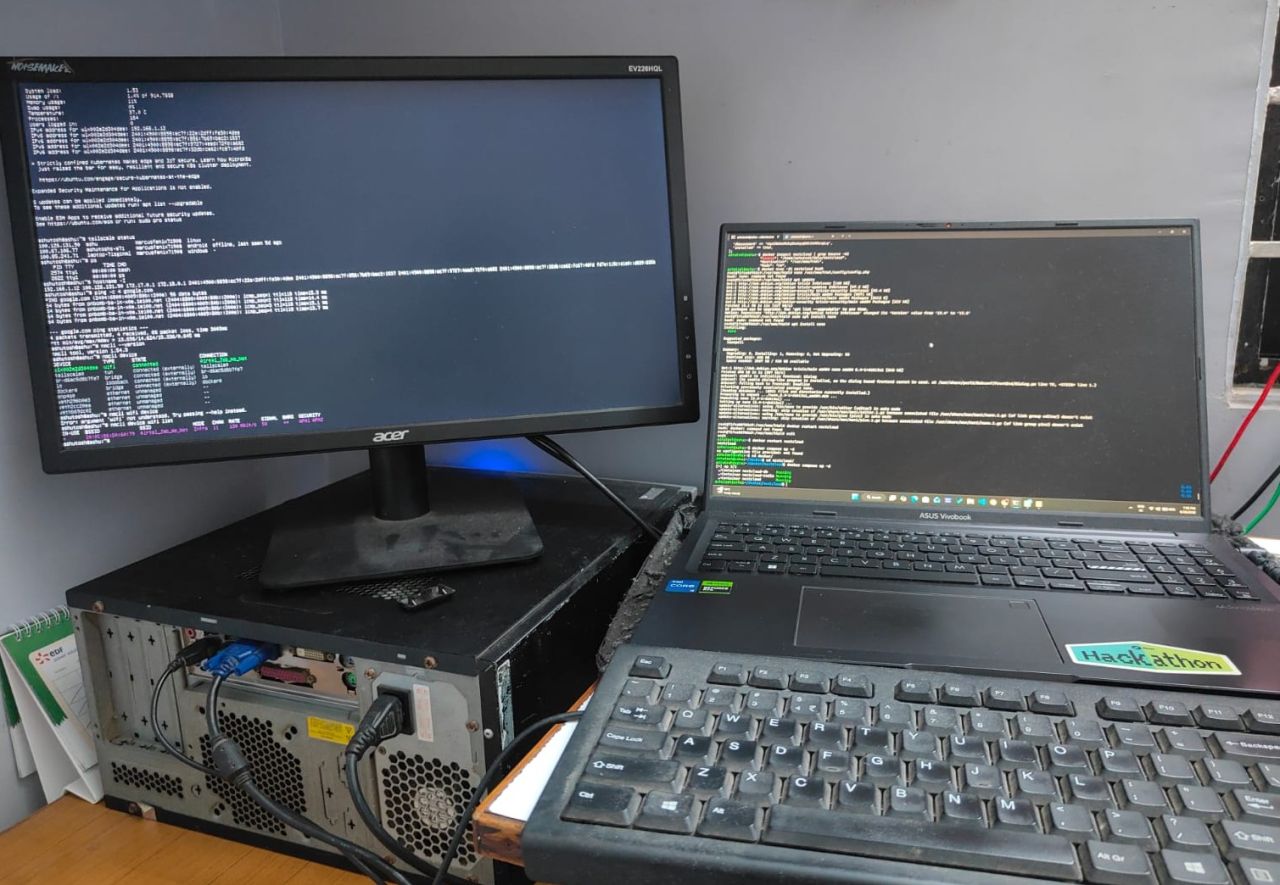
The hardware wasn't anything fancy:
- Intel Core i3
- 4 GB RAM
- 1 TB SSD
Not exactly a data centre, but enough to experiment with Linux, self-hosted applications, and containerisation.
The goal was simple: get Ubuntu running, establish reliable network connectivity, configure remote access, and eventually disconnect the monitor and keyboard.
That last part was important. I wanted the server to run quietly in the background, doing its job without needing a dedicated display.
Of course, getting an operating system installed is the easy part. Making the machine reliable enough to leave running unattended is a different story.
Before I could think about cloud storage or remote applications, I needed to get the foundations right: networking, a stable IP address, and a way to administer the machine without sitting in front of it.
That was where the next phase of the project began.
2. SSH, Static IPs, and the Networking Problems
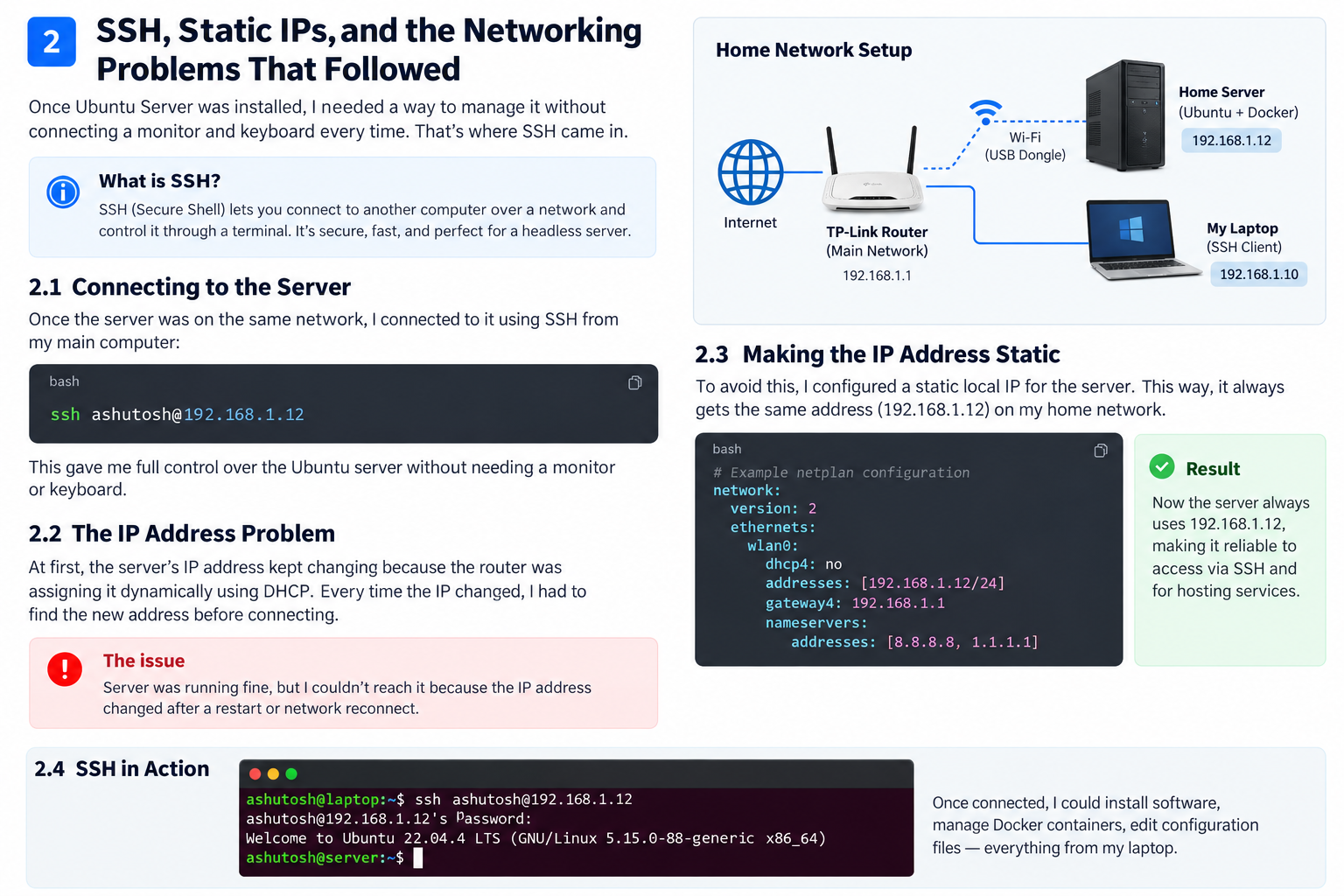
I didn't want to connect a monitor and keyboard every time I needed to manage my server. I wanted to control it from my laptop.
That's where SSH came in.
SSH (Secure Shell) lets me access the Ubuntu server through a terminal over the network. Once configured, I could install software, edit files, and troubleshoot the machine remotely.
The problem: changing IP addresses
My server depended on the home network, and I needed a predictable address to connect reliably. DHCP can assign addresses dynamically, so I worked on configuring a stable local IP for the server.
This taught me an important lesson: a server can be running perfectly and still be unreachable because of a networking problem.
Making remote access practical
With SSH and the network configuration in place, I could manage Ubuntu without sitting beside the machine.
That was a major step towards my goal of running a headless server, one that could operate without a permanently connected monitor or keyboard.
3. Giving My Server a Permanent Address
Before installing applications, I needed to solve one networking problem: how do I make sure I can always find my server on my home network?
My router uses DHCP to assign IP addresses to connected devices. This is convenient for everyday devices, but I wanted a predictable address for my Ubuntu server so that I wouldn't have to search for it whenever its address changed.
Static IP: The solution
During the setup, I worked with the local IP address 192.168.1.12 for my Ubuntu server.
The idea was simple: give the server a consistent address on the local network so I could connect to it using SSH and later access the services hosted on it.
On Ubuntu Server, network settings can be managed through Netplan. Depending on the network setup, this can involve configuring a static address, the default gateway, and DNS servers.
There are two common approaches:
- Static IP on the server: Configure the address directly in Ubuntu using Netplan.
- DHCP reservation on the router: Tell the router to assign the same address to the server whenever it requests an address.
Both approaches can provide a predictable address, but they need to be configured correctly to avoid IP conflicts.
For my home lab, having a stable local IP was an important step towards making the server accessible without repeatedly checking its address.
4. Docker: Turning One PC into a Multi-Service Server
With Ubuntu Server running, SSH available, and networking configured, I was ready to move on to applications.
But I didn't want to install and manage every service independently on the operating system. I wanted a cleaner way to run multiple applications on the same machine.
That's when I started using Docker.
Why Docker?
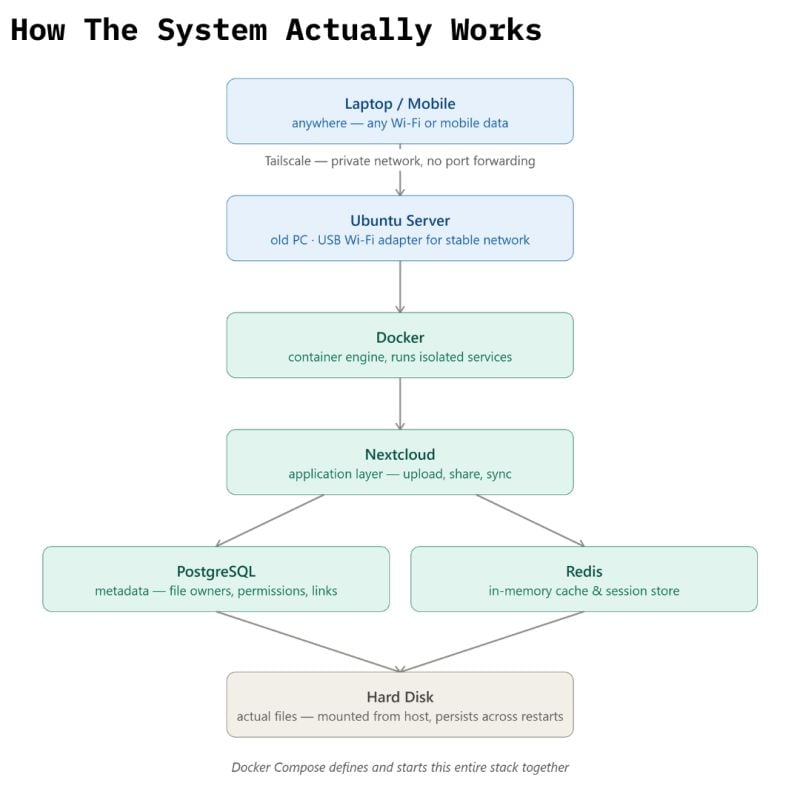
Think of Docker as a way to package applications and run them in isolated containers. Each container has its own application environment, while sharing the underlying resources of the host machine.
For my home server, this meant I could run services such as Nextcloud and its supporting database without needing a separate physical computer for each one.
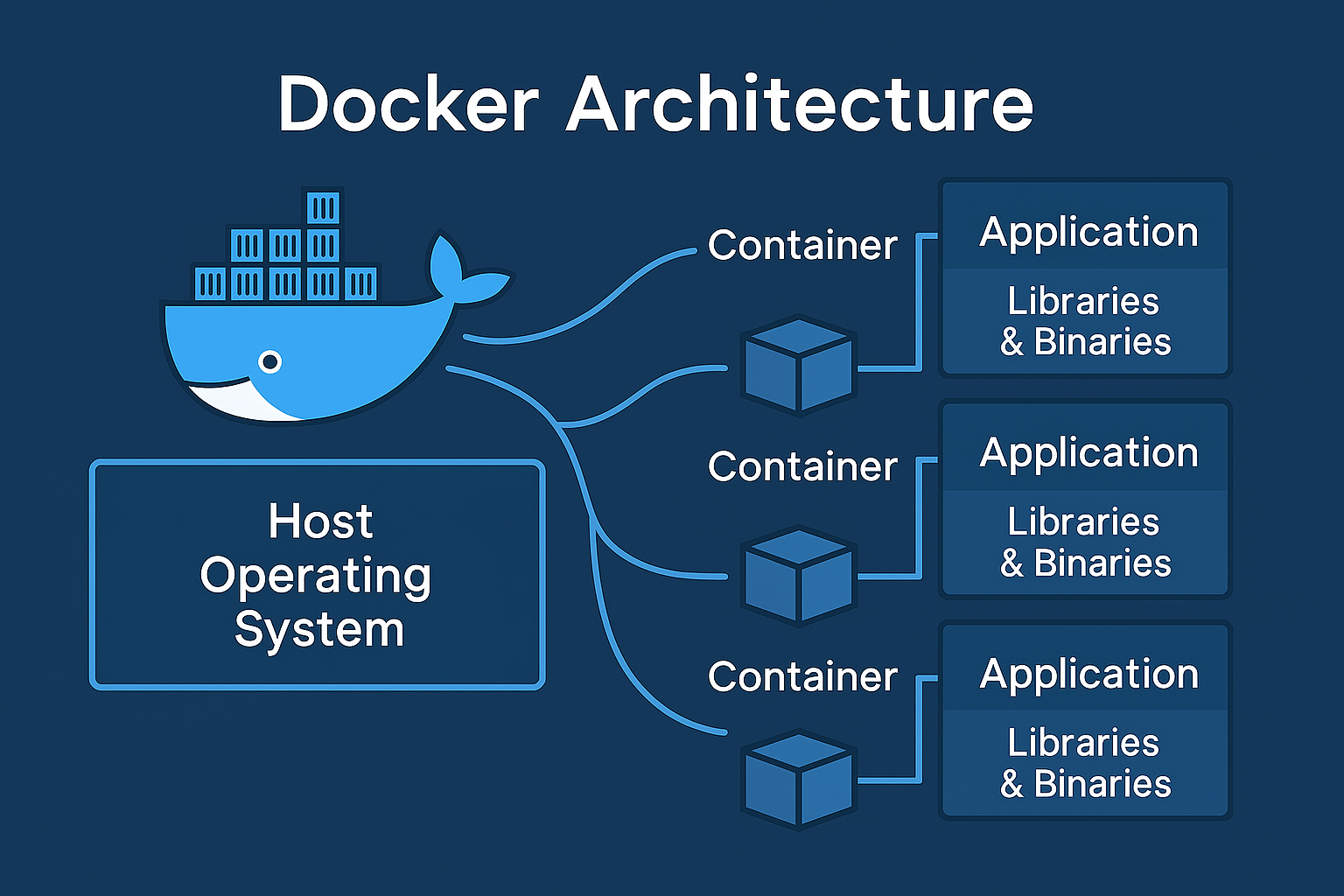
I also used Docker Compose, which lets you define multiple services in a configuration file and manage them together.
Instead of manually setting up every component from scratch, I could describe the services, their configuration, network connections, and persistent storage in one place.
One machine, multiple services
This was the foundation for the next stage of the project.
I planned to run Nextcloud for personal cloud storage, PostgreSQL for its database, and Redis as a supporting service.
Each component had a different responsibility, but they could all run on the same Ubuntu server.
Docker made the setup easier to organise and manage. It didn't eliminate the need to configure networking, storage, or security correctly, but it gave me a much more structured way to deploy applications.
And now I had the foundation for the service I wanted to build first:
my own private cloud.
5. Building My Own Cloud with Nextcloud
Docker gave me a way to run applications. Now I needed an application worth running.
I wanted something practical, a service I could use in my daily life, not just install and forget about.
That's why I chose Nextcloud.
Nextcloud is a self-hosted platform that lets you store, organise, and access files through a web interface. Instead of relying entirely on an external cloud storage provider, I could host my own instance on hardware I already owned.
Understanding the setup
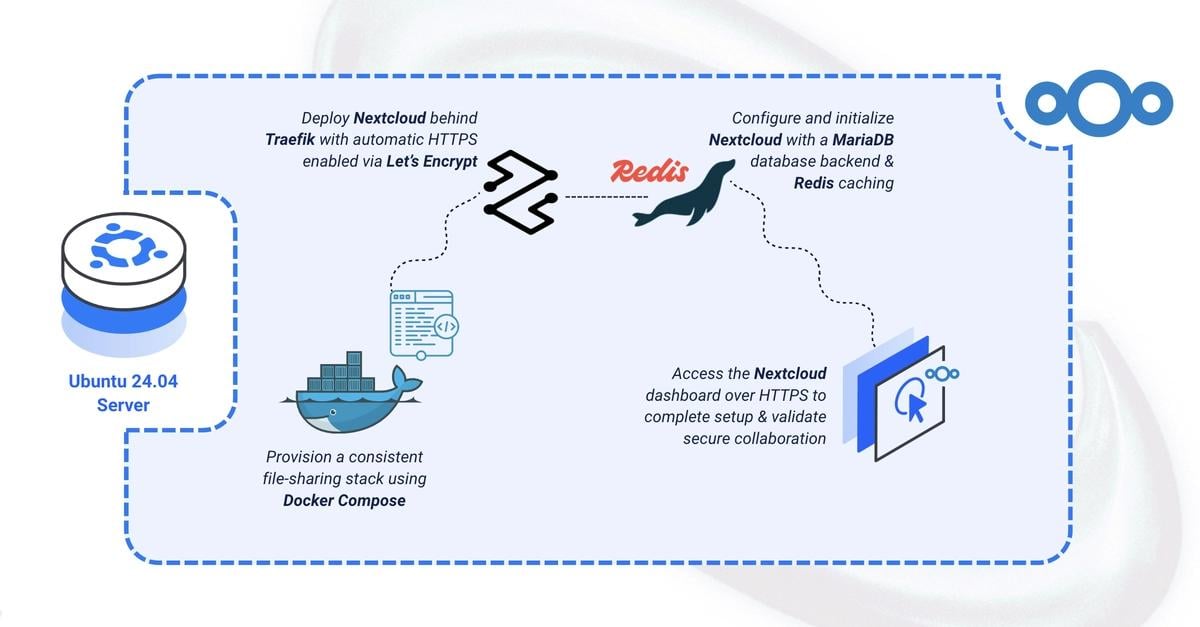
I deployed Nextcloud using Docker Compose, alongside two supporting services: PostgreSQL and Redis.
Here's what each component did:
- Nextcloud: The application providing the cloud storage interface.
- PostgreSQL 16: The database used to store Nextcloud's structured application data.
- Redis 7: A supporting service for caching and other configured operations.
All three ran on the same physical machine, but each had a distinct responsibility.
Keeping the data persistent
One important detail was persistent storage.
Containers can be recreated during maintenance or updates. I needed to ensure that important files and database data weren't tied solely to the lifecycle of a container.
I configured host directories for PostgreSQL and Nextcloud, including its application and data directories. This allowed the services to retain their data outside the containers themselves.
My Nextcloud service was mapped to a port 8080 on the host, allowing me to access its web interface through the server's local address.
For the first time, my old PC wasn't simply storing files on a network. It was hosting an application that I could interact with through a browser.
Then came the troubleshooting.
Getting the containers running wasn't the end of the job.
I encountered database and container-management issues and later ran into Nextcloud's trusted-domain check when accessing it through a hostname.
These problems reminded me that deploying an application involves more than starting a container. The database must be reachable, storage must be configured correctly, and the application must recognise the hostname through which it is accessed.
Each issue pushed me to understand the configuration instead of treating Docker as a magic button.
6. Accessing My Server from Anywhere with Tailscale
By this point, I had Ubuntu Server running, Docker managing my services, and Nextcloud providing my own cloud storage.
But there was still one limitation.
I could access my services on my home network, but I wanted to reach my server when I was somewhere else.
Imagine wanting to access a file stored in Nextcloud while you're at college or visiting another city. The server is running at home, but your laptop or phone is connected to a completely different network.
How do these devices communicate securely?
Enter Tailscale.
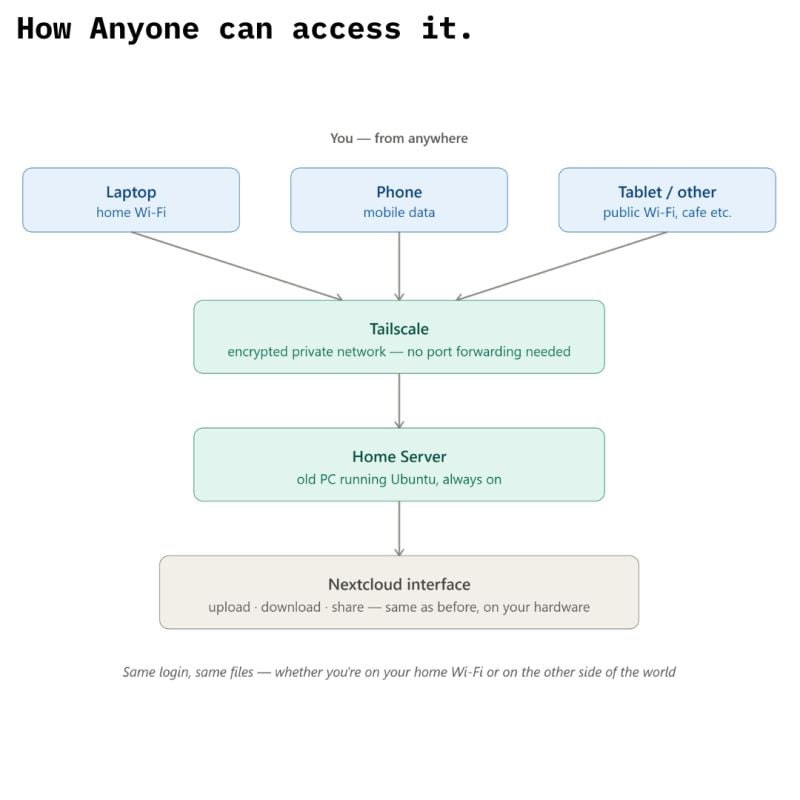
I used Tailscale to establish a private network between my devices.
Tailscale uses WireGuard-based encrypted connections to connect authorised devices. Once the devices are connected and the relevant permissions are configured, I can reach my server through its Tailscale address without relying on its local home-network IP address.
This was particularly useful because my home server was behind my router. I didn't want to start by exposing every service directly to the public internet.
Why this mattered
Tailscale gave me a practical way to manage the server remotely.
I could connect to Ubuntu through SSH, administer the machine, and access services according to the network and access rules I had configured.
It also helped me understand an important distinction:
A service being accessible remotely doesn't necessarily mean it needs to be publicly accessible.
A private network is useful for accessing your own devices. Public access is a different requirement and needs a different approach.
That distinction became important in the next stage of the project, when I started exploring Cloudflare Tunnel and custom domain names.
7. Cloudflare Tunnel: Connecting My Server to My Domain
Tailscale gave me a way to access my server privately. But I wanted to explore something different: accessing selected services through my own domain.
That's where Cloudflare Tunnel came in.
Instead of configuring traditional port forwarding on my home router, I set up a tunnel to connect my domain to services running on my home server. This allowed me to experiment with accessing applications through a public hostname while keeping the server itself behind my home network.
The interesting part was understanding how the pieces worked together. A service could run locally on Ubuntu, inside a Docker container, while Cloudflare Tunnel provided a route for incoming requests to reach it.
I was no longer just accessing a computer on my home network. I was learning how to connect self-hosted applications to the wider internet.
Of course, making a service reachable doesn't automatically make it secure. Authentication, access controls, application updates, and careful configuration still matter.
But this was another important milestone in the project: understanding the difference between private remote access through Tailscale and publishing selected services through Cloudflare Tunnel.
Final Thoughts 😀
What started as an old PC and a forgotten router gradually became my own self-hosted environment.
Along the way, I explored Linux server administration, networking, Docker, databases, cloud storage, VPN-based remote access, and tunneling.
The biggest takeaway wasn't simply getting everything to work. It was learning how these technologies fit together, and discovering that troubleshooting is a big part of building anything real.
Part 1 was about building a NAS. Part 2 was about turning it into a server that could run applications and be accessed remotely.
And this is only the beginning of my home lab journey.
Comments
Join the discussionNo comments yet. Be the first to comment.